Template Testing
Documentation and articles:
Setting Up Tests
To add tests to a template downloaded from tpltest, follow these steps:
- Install
nodeandnpm: https://nodejs.org/en/download/ (the installer will ask about native module support — this is not needed). - In the template directory, create a file with the following content (if you are using the provided PhpStorm ZIP, this is already prepared):
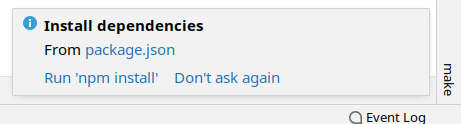
package.json — after creating the file, PhpStorm will offer to install dependencies (click Run 'npm install').
{
  "scripts": {
    "install": "npx playwright install",
    "start-test-ui": "npx playwright test --ui",
  },
  "devDependencies": {
    "@playwright/test": "^1.54",
    "@simplia/frontend-test-data": "*"
  }
}
- In the
testsfolder, create a file named browsers.json
This file contains the list of browsers/devices on which tests will run. Individual tests can restrict the device set.
[
  "Desktop Chrome",
  "Desktop Firefox",
  "Desktop Safari",
  "Pixel 5",
  "iPhone 12"
]
Available devices:
Blackberry PlayBook
Blackberry PlayBook landscape
BlackBerry Z30
BlackBerry Z30 landscape
Galaxy Note 3
Galaxy Note 3 landscape
Galaxy Note II
Galaxy Note II landscape
Galaxy S III
Galaxy S III landscape
Galaxy S5
Galaxy S5 landscape
Galaxy S8
Galaxy S8 landscape
Galaxy S9+
Galaxy S9+ landscape
Galaxy Tab S4
Galaxy Tab S4 landscape
iPad (gen 5)
iPad (gen 5) landscape
iPad (gen 6)
iPad (gen 6) landscape
iPad (gen 7)
iPad (gen 7) landscape
iPad Mini
iPad Mini landscape
iPad Pro 11
iPad Pro 11 landscape
iPhone 6
iPhone 6 landscape
iPhone 6 Plus
iPhone 6 Plus landscape
iPhone 7
iPhone 7 landscape
iPhone 7 Plus
iPhone 7 Plus landscape
iPhone 8
iPhone 8 landscape
iPhone 8 Plus
iPhone 8 Plus landscape
iPhone SE
iPhone SE landscape
iPhone X
iPhone X landscape
iPhone XR
iPhone XR landscape
iPhone 11
iPhone 11 landscape
iPhone 11 Pro
iPhone 11 Pro landscape
iPhone 11 Pro Max
iPhone 11 Pro Max landscape
iPhone 12
iPhone 12 landscape
iPhone 12 Pro
iPhone 12 Pro landscape
iPhone 12 Pro Max
iPhone 12 Pro Max landscape
iPhone 12 Mini
iPhone 12 Mini landscape
iPhone 13
iPhone 13 landscape
iPhone 13 Pro
iPhone 13 Pro landscape
iPhone 13 Pro Max
iPhone 13 Pro Max landscape
iPhone 13 Mini
iPhone 13 Mini landscape
iPhone 14
iPhone 14 landscape
iPhone 14 Plus
iPhone 14 Plus landscape
iPhone 14 Pro
iPhone 14 Pro landscape
iPhone 14 Pro Max
iPhone 14 Pro Max landscape
Kindle Fire HDX
Kindle Fire HDX landscape
LG Optimus L70
LG Optimus L70 landscape
Microsoft Lumia 550
Microsoft Lumia 550 landscape
Microsoft Lumia 950
Microsoft Lumia 950 landscape
Nexus 10
Nexus 10 landscape
Nexus 4
Nexus 4 landscape
Nexus 5
Nexus 5 landscape
Nexus 5X
Nexus 5X landscape
Nexus 6
Nexus 6 landscape
Nexus 6P
Nexus 6P landscape
Nexus 7
Nexus 7 landscape
Nokia Lumia 520
Nokia Lumia 520 landscape
Nokia N9
Nokia N9 landscape
Pixel 2
Pixel 2 landscape
Pixel 2 XL
Pixel 2 XL landscape
Pixel 3
Pixel 3 landscape
Pixel 4
Pixel 4 landscape
Pixel 4a (5G)
Pixel 4a (5G) landscape
Pixel 5
Pixel 5 landscape
Moto G4
Moto G4 landscape
Desktop Chrome HiDPI
Desktop Edge HiDPI
Desktop Firefox HiDPI
Desktop Safari
Desktop Chrome
Desktop Edge
Desktop Firefox- In the
testsfolder, create test files (subfolders are allowed) — the file name must always end with.spec.jsor.spec.ts:
test.spec.js
import {test, expect} from '@playwright/test';
import {Url} from '@simplia/frontend-test-data';

test('buy single variant on mobile', async ({page, isMobile}) => {
    const url = await Url.productWithSingleSelectedVariant();

    await page.goto(url);
    await page.waitForLoadState();

    if (await page.locator('.gdpr-cookie-bar').isVisible()) {
        await page.locator('.gdpr-cookie-bar .gdpr-cookie-confirm').click();
    }

    await page.locator('.js_koupit').getByRole('button').click();

    await expect(page.locator('.dialog-koupit .ui-dialog-title')).toBeVisible();
    await expect(page.locator('#dialog-tlacitka .button-shadow--green')).toBeVisible();
});- Running tests locally:
To open the test UI, run the following command in the terminal:
npx playwright test --uiTest URLs
Tests must not contain hardcoded URLs:
- they would not work on other tpltests
- if a product sells out, the test would stop working
A Url helper class is provided for use in tests, returning typed pages:
- Url.index() — home page
- Url.index({preselectGDPR: true}) — home page, but all required GDPR checkboxes or terms-of-service consents are pre-checked
- Url.productWithoutVariants() — random product without variants
- Url.productWithSingleVariant() — random product with a single variant
- Url.productWithSingleSelectedVariant() — random product with a single pre-selected variant
- Url.productWithVariants() — random product with multiple variants
- Url.productWithVariantsSelected() — random product with multiple variants and one pre-selected
All URLs can also be augmented with parameters that affect the behavior of the loaded page. For example, you can disable JavaScript and test the page as a customer on a slow connection would see it: Url.index({javascript: false})
In addition to the provided URLs, you can also navigate within a test by loading a page and clicking through menus. If you need a typed page with specific parameters, contact support to have it added.
Input Data
For form input data, use the Input helper class. Unlike static data hardcoded in tests (such as a delivery address), this ensures that input data is relevant to the specific domain.
import {Input} from '@simplia/frontend-test-data';

export default async function (page) {
    const testAddress = await Input.validAddress();

    await page.locator('.form_adresa input[name="email"]').fill(testAddress.email)
}
Recommendations
Playwright is designed to navigate via button texts and verify displayed texts. For e-shops, however, this approach is not practical because products change and templates are used across e-shops in different languages.
Therefore, you should use either CSS selectors or, ideally, the data-testid attribute. If an element is marked in the code with data-testid="directions", you can use page.getByTestId('directions').click() in Playwright.
Using testid has the advantage that for standard elements (such as the add-to-cart button) the same identifier can be used across templates without affecting CSS/JS. This way, a test definition can survive a redesign.
Special Values
The email address debug@simplia.cz used in an order, registration, or newsletter signup will land on the confirmation page as if the action succeeded, but it can be used repeatedly without actually creating an order.
The search phrase %debugSearchAnyResult% always returns some result, and the phrase %debugSearchNoResult% never finds a product.